
How to delete an AI voice begins by identifying every copy connected to the voice: the voice profile, source recordings, generated files, sharing settings, and account data.
Delete the custom voice profile first, then remove recordings and audio outputs. Confirm whether the service also removes backups, shared copies, and derived model data.
What Does Deleting an AI Voice Actually Remove?
Deleting a voice profile does not automatically delete every related file.A voice clone exists in more than 1 place. A deletion button can remove a selectable voice profile without removing the original recording, exported audio, or account history.
Treat deletion as 5 separate tasks: remove the model, remove reference audio, remove generated speech, revoke sharing, and review account-level data. Each task protects a different copy.
A voice profile is not the source recording
A voice profile is the saved synthetic voice that a service uses for narration. A source recording is the spoken audio you uploaded or recorded to create that profile.
Delete both items when you want a complete removal. Check the product screen for separate menus named Voices, Recordings, Uploads, Media, or Data.
Generated audio needs separate attention
A generated MP3, WAV, or M4A file can stay in your project after you delete the voice. Download folders, cloud drives, team workspaces, and shared links can keep copies.
List every output before deleting the profile. Remove public links and downloaded files that you no longer want connected to the speaker.
Shared voices follow additional rules
A voice shared with a library, a workspace, or another account often needs unsharing first. Some services block profile deletion until the shared listing ends.
Remove access before you press delete. Tell collaborators that the voice will disappear so they can stop scheduled projects and choose another narrator.
How to Audit an AI Voice Before You Delete It
To audit an AI voice before deletion, collect the voice name, profile identifier, owner account, sharing status, source files, and every connected project. A short audit prevents an incomplete request.
Identify the exact voice
Open the voice list and copy the displayed name or identifier. Check the preview audio before deleting because similar labels often belong to different samples.
Record the creation date and owner account. Teams often use a work login, while the original speaker uses a personal email address.
Check where people can access it
Check private workspaces, public voice libraries, organization folders, published videos, and API projects. Ask collaborators whether they saved a local copy.
Remove a public listing before you remove the private profile. A public listing can allow other users to save a voice before the owner ends access.
Save only necessary evidence
Save the deletion confirmation, ticket number, and a screenshot of the voice list. Do not keep unnecessary copies of the original voice recording as proof.
Write the requested scope in one sentence. For example: remove the voice model, source samples, shared listing, and project access for a named profile.
How to Delete an AI Voice Profile From an App
To delete an AI voice profile from an app, open your custom voice list, select the exact profile, choose Delete, and complete the confirmation screen. The labels differ across products.
Many platforms place the control under a three-dot menu, a settings icon, or a profile detail page. ElevenLabs documents a More actions menu, while other tools use a dedicated Delete button.
Use the profile page, not a voice selector
A voice selector changes the narrator for one project. A profile page manages the saved model. Open the management page before you assume a voice has been removed.
Look for an irreversible warning. Read the warning because some products remove a voice permanently, while others send the request to support.
Stop scheduled generation first
Pause automated narration, queued jobs, and scheduled publishing before deletion. A scheduled task can generate fresh files after you remove older ones.
Replace the narrator in active audiobook projects. Your editing team needs a valid voice before a system can regenerate chapters or corrections.
Confirm the profile disappears
Refresh the voice management page after deletion. Search by the former name and identifier to confirm that the account no longer lists the profile.
Sign out and sign back in if the page shows a stale list. A browser cache can display a removed profile for a short time.
Quick Reference for AI Voice Deletion
| Task | Timing | Method | Difficulty |
|---|---|---|---|
| List every voice copy | Before deletion | Check profiles, files, and sharing | Medium |
| Remove public sharing | Before profile removal | End listing and team access | Medium |
| Delete voice profile | After audit | Use custom voice settings | Low |
| Delete recordings and audio | After profile removal | Remove uploads and exports | Medium |
| Confirm the request | After deletion | Save receipt and recheck list | Low |
How to Delete an AI Voice Recording and Generated Audio
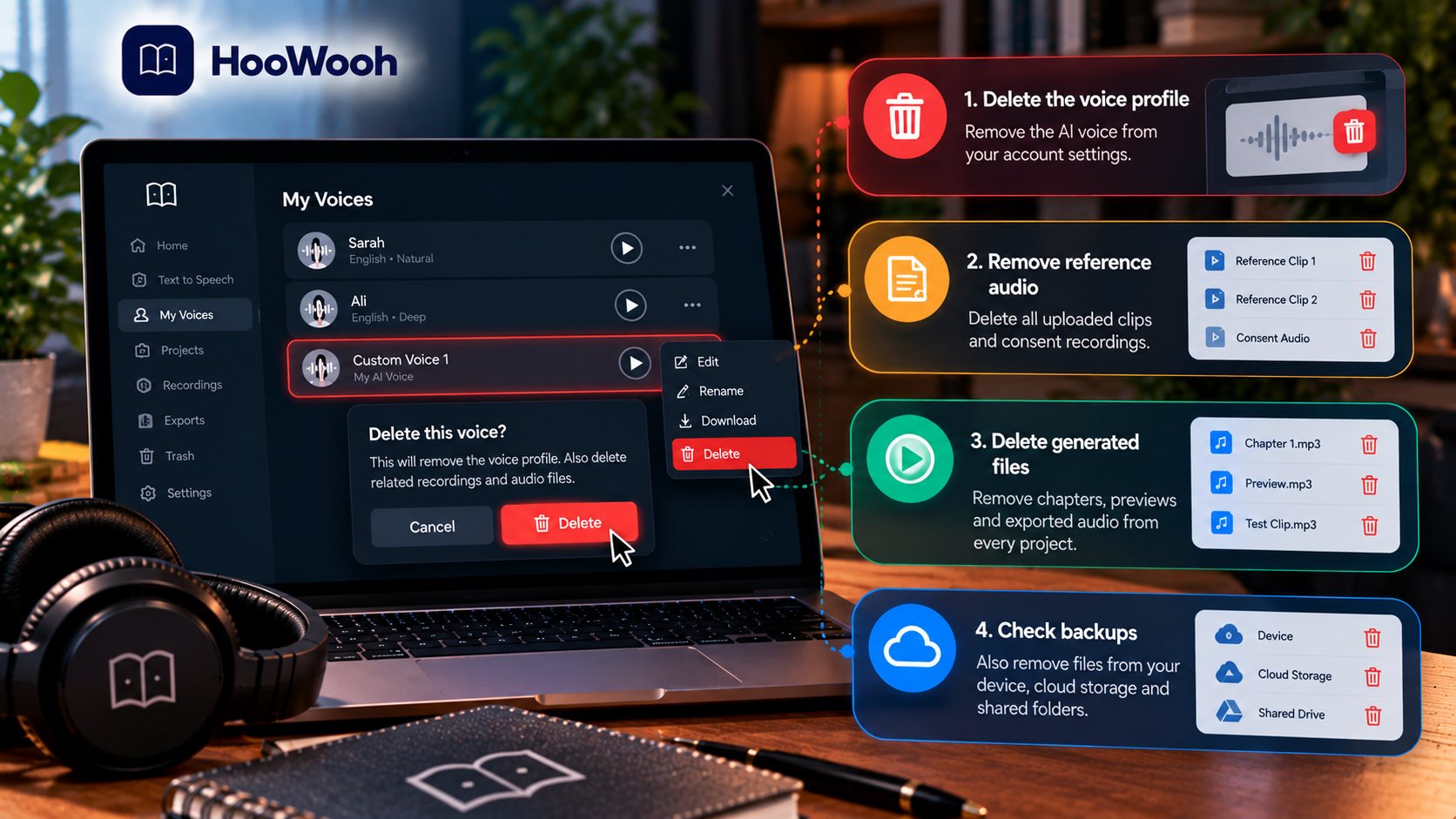
To delete voice recordings and generated audio, open every recording and file area connected to the account. Remove the source uploads and output files after you delete the voice profile.
A service can retain separate categories for recordings, projects, clips, exports, and trash. Empty the trash when the service states that deleted items remain recoverable.
Remove the reference audio
Find every uploaded reference clip and consent clip. Delete the clips from the service and from your own device, cloud folder, and email attachment history.
Check old project drafts for embedded audio. Video editors and audiobook software often copy a narration file into an export folder.
Remove generated work by project
Open each project that used the voice. Delete generated chapters, previews, pronunciation tests, and short social clips that contain the synthetic narration.
Remove share links before deleting the file. A person who already downloaded a file controls that local copy, so ask recipients to delete it too.
Separate backups from active storage
A backup protects recovery, not privacy. Check device backups, shared drives, creator folders, and automated cloud syncing for the original sample and generated audio.
Follow the backup provider’s deletion policy. Some systems remove a file immediately from active storage but retain an older version during a stated backup period.
How to Delete an AI Voice Shared With Others
To revoke sharing and consent for an AI voice, stop public listing and workspace access before you delete the profile. Send a dated written request when the product lacks a visible control.
Consent can end even if the original voice owner created the profile. A speaker can change a decision about future use of a synthetic voice.
Remove library and team access
Open every sharing menu and remove the public listing, collaborator access, and API permissions. Check whether a service uses separate public and private sharing controls.
Ask the workspace administrator to remove access when you cannot see team controls. An organization account can retain a voice after a member leaves.
Write a precise deletion request
Name the voice, account, approximate creation date, and requested scope. Ask the provider to confirm removal of the profile, recordings, derived model, public listing, and account access.
Keep the tone factual. A support team can process a narrow, clearly identified request faster than a vague demand to delete “everything.”
Document the consent withdrawal
Save a copy of the consent withdrawal and delivery confirmation. Tell collaborators that future synthesis using the named voice lacks permission.
Do not send the voice sample again while requesting deletion. Use an account email, profile identifier, or support ticket to identify the material.
How to Ask a Provider to Delete Voice Data
To ask a provider to delete voice data, use the account deletion or privacy request channel listed in the provider policy. Include enough account details to locate the voice without attaching new audio.
Read the response carefully. A provider may confirm profile deletion but describe separate retention rules for billing records, security logs, de-identified data, or legally required records.
Ask 4 direct questions
Ask whether the provider deleted the voice model, source recording, consent recording, generated audio, and public sharing record. Ask whether backups retain any account-linked material.
Ask for the completion date and the scope of deletion. A clear reply gives you a record if the voice appears again later.
Use product support when deletion fails
Contact support if the delete button is missing, the profile cannot be removed, or an old clone appears under a legacy product category. Include screenshots without exposing sensitive recordings.
Do not create a duplicate voice just to test deletion. Duplicate profiles create more voice data and make the cleanup task harder.
Escalate factual privacy concerns
Use the provider’s privacy contact when a speaker never consented or access continues after a completed request. Keep dates, account names, and confirmation messages together.
Seek qualified legal advice for a serious dispute involving impersonation, fraud, employment harm, or unauthorized commercial use. A product guide cannot resolve those claims.
How to Confirm an AI Voice Is Gone
Confirmation requires more than a success message. Check the voice list, project selector, recording library, sharing page, and account data page after deletion.
Repeat the checks from a second device or a fresh browser session. A cached page can keep a removed profile visible after the service completed deletion.
Check every management screen
Search the old voice name and identifier in Custom Voices, Recordings, Projects, Library, and Team areas. Check the account API list if you manage voices through an API.
A successful profile deletion should prevent new synthesis with that voice identifier. Do not run a fresh test with the deleted speaker voice.
Keep a small deletion log
Record the profile name, action date, request channel, and confirmation number. Store the log without the source recording or generated narration.
A deletion log helps you answer a later question about consent or access. The log should contain administrative facts, not biometric audio.
Watch for accidental recreation
Remove old automation settings and templates that reference the deleted voice. A team member can recreate a profile accidentally after finding an old sample in a shared folder.
Set a clear policy: do not recreate a named voice without new consent from the adult speaker. New consent should state the new purpose and storage plan.
How Can You Avoid a Difficult AI Voice Deletion Later?
Set deletion rules before creating a voice. A clear plan protects the speaker and gives a team a defined response when a project ends. Use temporary or client-managed storage when available, and upload only the audio needed for the approved purpose. A short, clean sample can reduce unnecessary exposure compared with a long recording. Create an access and retention record that lists the owner, approved users, purpose, storage location, review date, and deletion path. Remove access when a contractor, employee, or collaborator leaves the project. Finally, review every active voice regularly and delete unused trials, old test voices, and duplicate profiles before the library becomes difficult to manage. A smaller voice library is easier to audit, and each remaining voice should have a current owner, active purpose, and documented consent.
What Should a Team Do After an AI Voice Deletion?
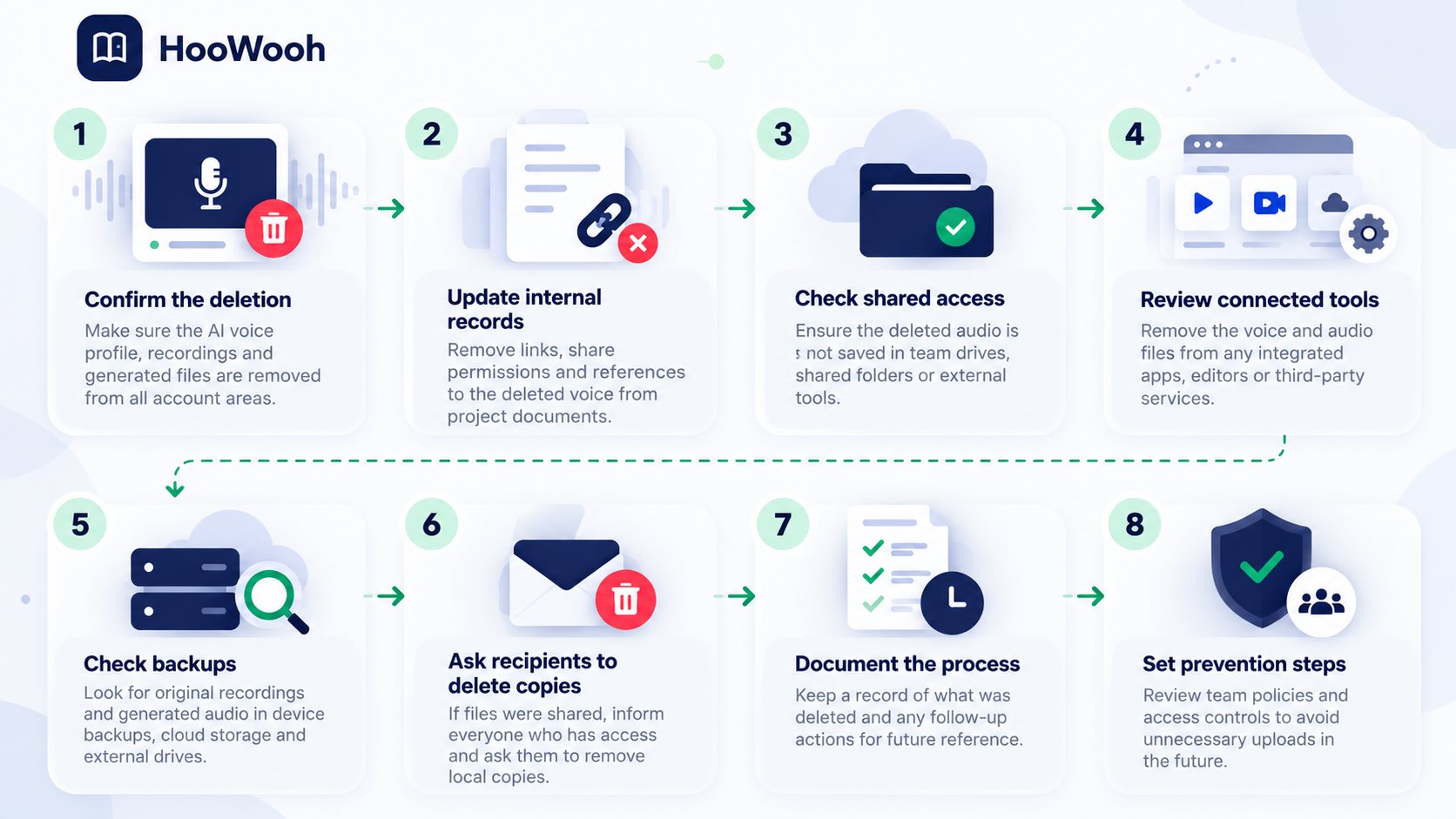
Tell every active user about the deletion immediately so writers, editors, and automation owners know the former voice is no longer available. Update production notes, scripts, project briefs, templates, and automated text-to-speech settings to remove references to the deleted voice. Review every audiobook chapter, preview, social clip, and draft that uses the profile, and assign a different approved narrator before the next production task. Do not substitute another person’s voice without permission; every replacement should have its own owner record, approved purpose, and consent status. Remove API keys, workflow variables, saved presets, and third-party automation settings connected to the deleted voice to prevent failed jobs or accidental recreation. Tell clients and collaborators which files remain valid and which need replacement, and ask recipients to delete local copies when consent has been withdrawn. Finally, review why the voice was deleted, improve future intake procedures where needed, and keep proportionate proof such as the confirmation email, ticket number, date, and profile identifier in a restricted record. Avoid storing the original voice sample or synthetic test files as deletion evidence, and remove expired administrative records after the project is complete.
Frequently asked questions
Does deleting an AI voice delete the source recording? No. Many products store voice profiles and reference recordings separately, so you need to remove both.
Can you delete a public AI voice immediately? Usually no. End public sharing first, then follow the provider’s profile deletion or support workflow.
Should you keep a copy of the original voice sample after deletion? No. Keep only administrative proof, unless the voice owner has another documented reason for retaining the sample.
Can an API user delete a cloned voice? Yes. Many providers offer a delete endpoint, but the API action often removes only the named voice resource.
Can you undo AI voice deletion? No. Treat deletion as permanent unless the provider clearly offers a recovery period.
Take Control of Your Voice Data
How to delete an AI voice is a process, not a single click. Remove the model, recordings, outputs, sharing access, and account data that remain within your control.
Use Hoowooh voice tools only with clear consent, then keep a written deletion path for every voice profile.