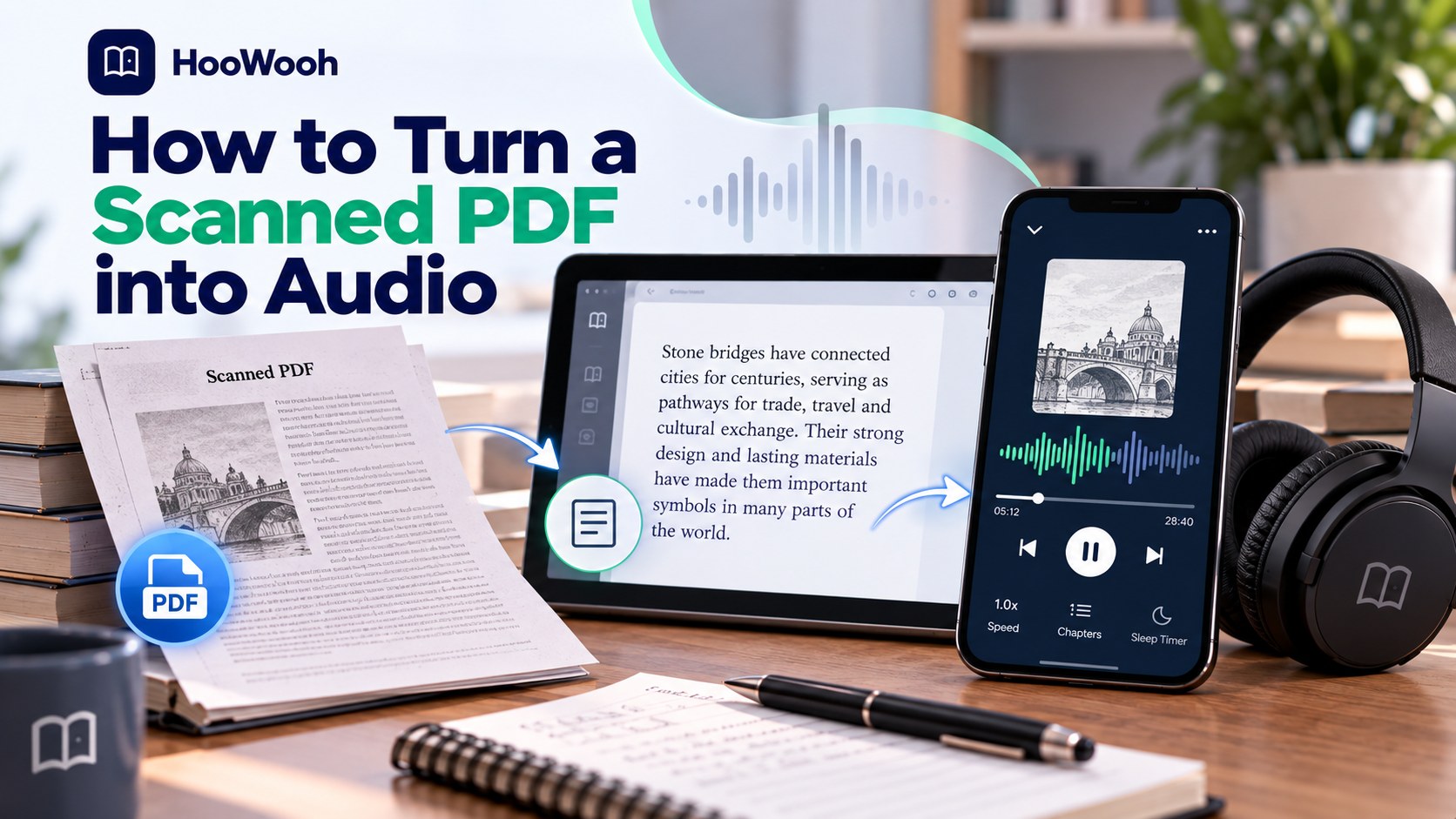
Turning a scanned PDF into audio is possible, but a good result begins with readable text. Treat the task as two stages: recover the words with OCR, then create narration from a cleaned listening script.
Why a scanned PDF needs a different workflow
Direct answer: A scanned PDF often contains images of pages rather than selectable text. A speech tool cannot reliably narrate what it cannot first recognize. OCR, or optical character recognition, converts those page images into text for review.
This difference explains why a clean digital PDF can sound fine while a scan produces nonsense. The source discussions repeatedly surfaced the same trouble spots: columns, headers, captions, citations, tables, footnotes, and formulas. Voice quality cannot repair a broken reading order.
Check whether your PDF already has a text layer
Run the selection test
Try selecting one paragraph and pasting it into a blank note. If you get sensible words in the right order, your PDF may already have usable text. If selection grabs the entire page as an image or produces gibberish, plan for OCR.
Sample more than one page
Test a normal page, a chapter opener, a table, and a page with notes. A file can contain some searchable pages and some image-only pages. That mixed state is common in course packs and old books.
Prepare the scan before OCR
A clean scan improves every downstream step. Straighten tilted pages, crop dark edges, remove fingers or shadows, and use a consistent page orientation. If the original paper is available, a fresh scan at a readable resolution beats hours of editing bad recognition.
Avoid making the page too sharp or too compressed. Heavy compression can turn letters into blocks. Keep the original PDF untouched and create a working copy for cleanup
.
| Page condition | Likely issue | First fix |
|---|---|---|
| Tilted or dark scan | OCR substitutes letters | Deskew, brighten, and rescan if possible |
| Two-column textbook | Reading order breaks | Extract and review one column at a time |
| Tables and formulas | Meaning is visual | Write a spoken summary or read labels deliberately |
Run OCR, then audit the recovered text
Do not trust a perfect-looking preview
OCR can look correct on screen while misreading a minus sign, a decimal point, an accented name, or a footnote marker. Search for obvious errors such as broken words, repeated headers, empty pages, and strings of symbols.
Test a representative chapter
A source discussion about dense medical PDFs made the right recommendation: test the hardest typical pages before converting the whole document. A simple introduction tells you little about a chapter full of columns, diagrams, or abbreviations.
Keep the page and text together
When accuracy matters, keep the source PDF open beside your extracted text. This lets you verify a doubtful phrase before it turns into permanent audio. It also protects the meaning of numbers, doses, equations, and quotations.
Create a listening script, not a visual copy
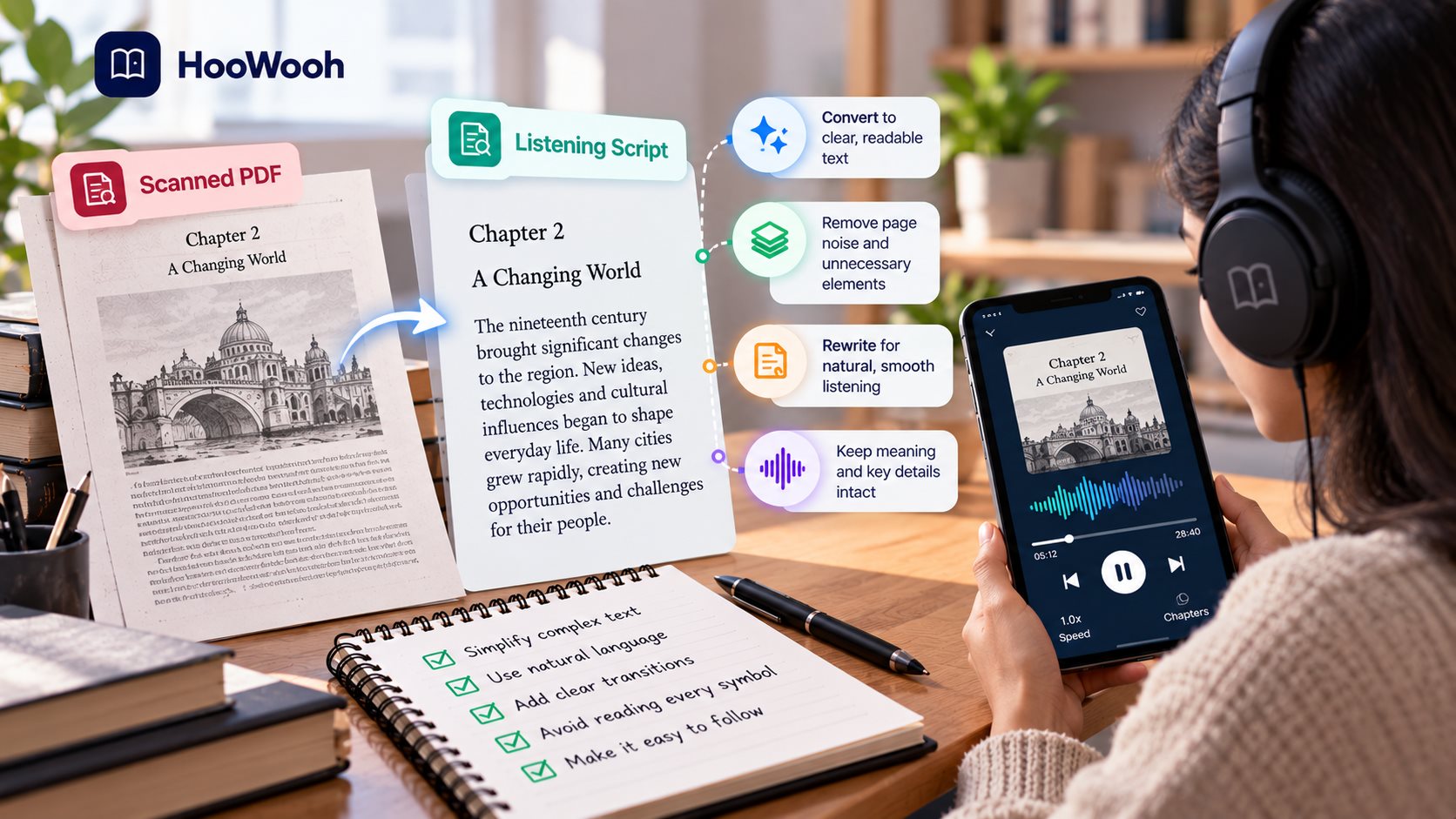
Direct answer: Edit for ears. Remove page furniture that adds no value, but preserve information the listener needs to follow the argument. A running header, page number, or repeated copyright notice rarely helps in audio.
Add verbal signposts around essential visuals. For a table, say what it compares and state the key rows. For a chart, give the trend and the labels. For a formula, decide whether a spoken description is more useful than reading every symbol.
Break very long paragraphs into natural pauses. Expand unexplained symbols where appropriate. Keep citations only when they matter to the listener’s purpose. This is not changing the author’s claims; it is presenting the existing material in a listenable order.
Generate audio in manageable sections
Split the script by chapter or a stable heading level. The local-tool thread described chunked processing and intermediate files for a good reason: long jobs can fail, and a single correction should not force a complete restart.
Preview a voice using the most difficult passage, not the title page. Check jargon, names, numerals, and a sentence with punctuation. Then generate one section at a time and retain the editable script alongside the audio.
Review what listeners will actually hear
Listen through headphones to the start and end of every chapter. Confirm that the audio begins in the right place, pauses make sense, and the next chapter does not repeat the last page. Use a second listener for specialized material if accuracy is important.
If words sound wrong, return to the script or OCR text. A pronunciation field can help with names. A corrected phrase is usually better than increasing the voice speed and hoping it becomes less noticeable.
Handle textbooks, tables, and research PDFs with care
Only convert material you own, have permission to use, or may legally access in this way. A file that opens in an app may still have usage restrictions. Respect the author, publisher, library, and platform terms before you export or share audio.
For study material, do not pretend every visual detail can become effortless audio. Create short spoken descriptions for key diagrams, maintain page references for follow-up, and pair audio with the PDF when you need to inspect a figure. The goal is better access, not false precision.
Use a scan-ready audiobook workflow
Hoowooh’s current site describes camera scanning and OCR for printed pages, plus narration choices and MP3 downloads. That combination maps to the practical workflow here: capture clear pages, check the words, choose a listenable style, then keep the resulting audio available offline.
A deeper quality-control plan
Plan before processing the full file
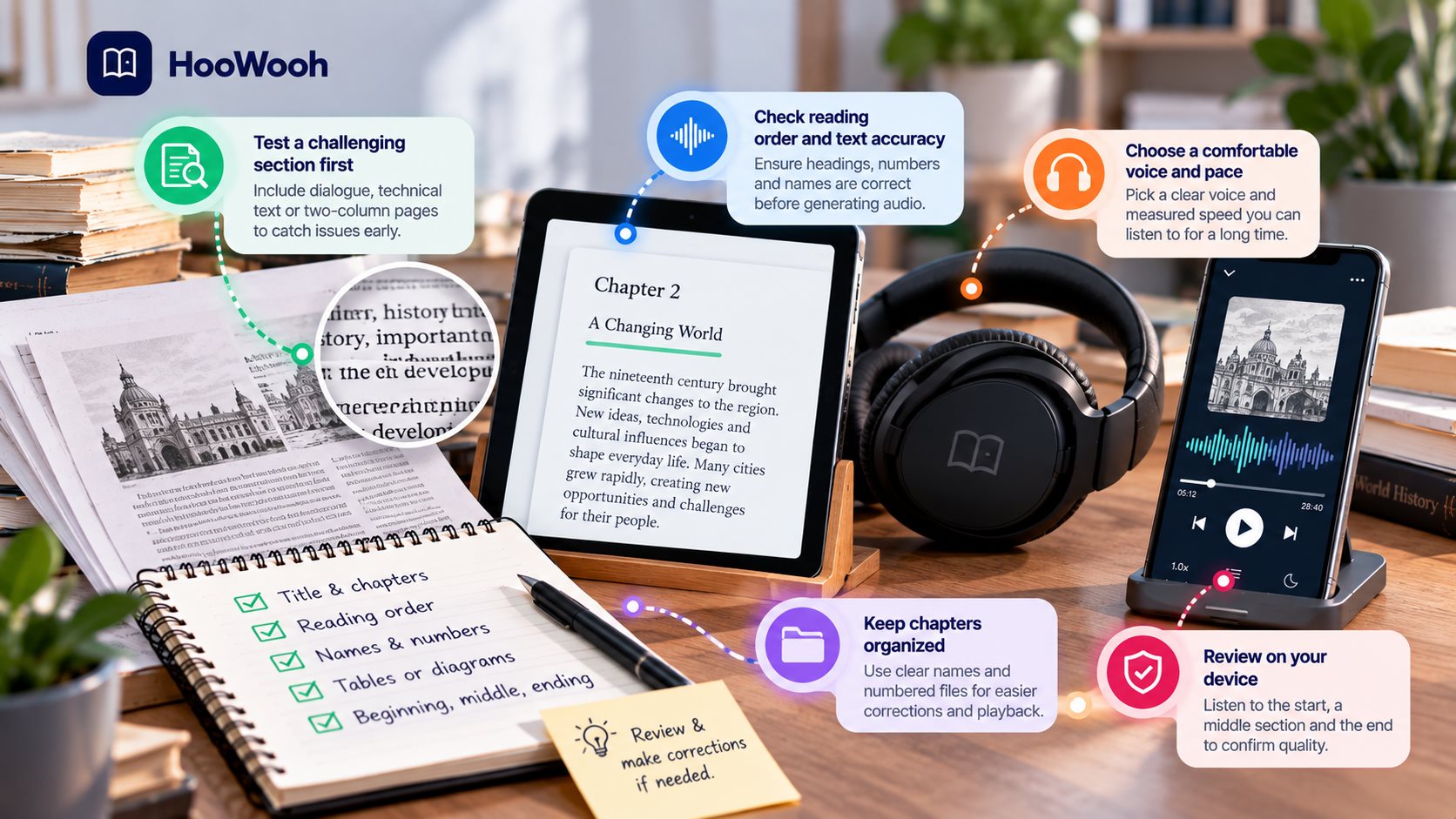
Scanned PDFs need an extra verification step because the original page is an image, not a reliable text source. Start with a small, representative section rather than the first easy page. Include the material that is most likely to expose a problem. That might be dialogue, a technical paragraph, a two-column page, or an unfamiliar name. Keep a copy of the original source and a separate working version. This gives you a clear way to compare the spoken result against the material you intended to hear.
A confident-looking OCR result can still reverse columns, miss negatives, or mistake symbols for letters. Make a short checklist before you render: title, chapter boundary, reading order, voice clarity, names, numbers, pauses, and ending. Listen to that checklist through the device you actually use. A phone speaker, car system, earbuds, and dedicated player can reveal different issues. Fix the underlying text or file structure before you generate more audio.
Set a realistic review standard. You do not need to inspect every second with a printed checklist, yet you should sample the beginning, a difficult middle section, and the ending of each chapter. This catches missing passages, duplicated sentences, sudden voice changes, and clipped endings. Mark the exact time of a problem so you can return to the correct section without repeating unrelated work.
Keep the listener in control
A chaptered listening script lets you compare each rendered section against its source pages. The listener should be able to pause, resume, skip a chapter, and return to a useful point without hunting through a single giant file. Give chapters meaningful names and keep their order stable. If you make a corrected version later, use a clear filename and retain the version that worked. Small organization habits make a personal audio library feel dependable instead of improvised.
Think about attention, not only sound. A comfortable voice, measured pacing, and clear transitions reduce the effort of listening. Dense prose may need shorter sections and more frequent rest points. Fiction may benefit from restrained expression that keeps dialogue understandable. The best setting is the one that lets the listener follow the author for a long period without becoming fatigued or distracted.
Do a transfer test before you call the project finished. Put one completed chapter on the intended device. Check playback with the screen locked, confirm the file title is visible, and test a pause followed by a resume. If you need offline access, turn off the connection during this test. It is far easier to discover an incompatibility with one chapter than after preparing an entire book.
Know when to stop and rework
If a page contains a critical table, formula, or diagram, describe it deliberately rather than forcing automatic narration. Rework is a normal part of making a usable listening version. Return to the source when you hear garbled text, a lost column, a confusing symbol, a repeated header, or a name that changes pronunciation. Do not solve a content problem by simply speeding up the voice. The right correction makes the audio more trustworthy and more pleasant to hear.
Keep notes that another person could understand. Record the source version, the date, the voice setting, and any unusual pronunciations. This matters when you revisit the material after a month or make audio for a family member, student, or colleague. It also makes a second conversion faster because you are building a repeatable listening process rather than starting from scratch every time.
Finally, judge success by the listener’s outcome. Can they follow the ideas while walking, resting, studying, or commuting? Can they locate a chapter again? Can they understand the names and numbers? If the answer is yes, the conversion has done its job. If not, the next improvement should target the specific point of friction rather than adding features that do not help the listener.
Make the result easy to revisit
Keep the source, edited chapters, and finished audio organized with the same book title. After the first session, identify one listening issue, fix it, and test again. Use a consistent workflow for future books: prepare the source, test difficult sections, generate manageable chapters, check playback, and save the final version. Treat the first chapter as a prototype and adjust the voice, structure, and format based on real listening needs.
Frequently asked questions
Can I turn an image-only PDF into audio? Yes, but OCR must first recover usable text. Test the result before narration because image quality and page layout affect accuracy.
Why does my audiobook read columns in the wrong order? The OCR or extractor may treat a two-column page as one stream. Reformat the text into one reading order before generating audio.
Can OCR read tables and formulas perfectly? No. Review them manually. Tables often need a spoken summary, and formulas may need a deliberate verbal description.
Should I scan every page again if one page fails? Not always. Start by rescanning the poor page. If many pages are tilted, dark, or blurred, a cleaner batch scan can save time.
Can I make audio from a textbook for personal study? Check your ownership, license, and local rules. Do not share or distribute audio unless you have the relevant permission.
Make your next listening session count
A readable scan is the foundation of usable audio. For a camera-to-OCR-to-MP3 workflow built around listening, visit Hoowooh.